




 Football in Budapest
 Tennis in Budapest
 Handball in Budapest
 Basketball in Budapest
 Volleyball in Budapest






Grundee works in the browser on any phone, and invitations open straight from WhatsApp, Viber or Messenger. Add it to your home screen and it opens full screen like an app, with notifications before your games.
Put Grundee on your home screen
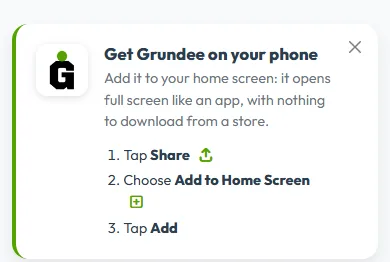
Signed in on a phone, your dashboard shows a “Get Grundee on your phone” card. It explains the taps for your phone.
-
iPhone and iPad (Safari)
Tap the Share button at the bottom of Safari, choose Add to Home Screen, then tap Add.
-
Android (Chrome, Samsung Internet)
Tap Add to home screen on the card and confirm. No card? Open the browser's ⋮ menu and choose “Add to Home screen” or “Install app”.
From then on, open Grundee with its icon. On iPhone the home-screen app keeps its own login, so sign in once there.
Get notifications on your phone
With notifications on, your phone tells you about your games even when Grundee is closed:
- a reminder 2 hours before each game you said yes to (it then comes here instead of by email);
- “Are you coming?” before the answer deadline. On Android you can answer right from the notification;
- everything that also shows under Alerts: invitations, new events, changes and payments.
-
Switch them on
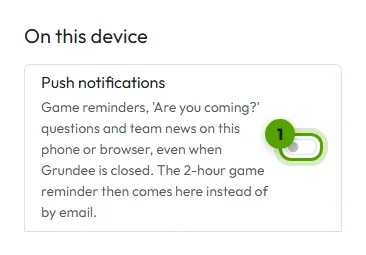
Tap your picture, then Account Settings, choose Notifications and switch on Push notifications.
After you answer an event or join a team, Grundee also offers it: tap Turn on.
-
Allow them in your phone's question
Your phone asks whether Grundee may send notifications: tap Allow. To check that they arrive, tap Send a test notification.
Notifications are set per phone or browser. Signing out on a phone stops them there; you can switch them off any time on the same settings page.
Getting around on a phone
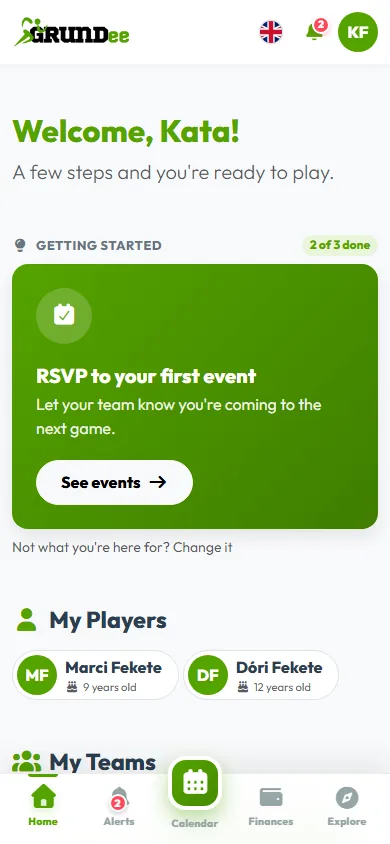
When you are signed in, a bar at the bottom of the screen takes you anywhere in one tap:
- Home your dashboard with your teams and next events
- Alerts your notifications
- Calendar every event of all your teams and children
- Finances what you owe and what you have paid
- Explore teams, classes, games and venues near you