




 Football in Budapest
 Tennis in Budapest
 Handball in Budapest
 Basketball in Budapest
 Volleyball in Budapest






A team is where your games, your players and your payments live. Setting one up takes about a minute; everything can be changed later.
-
Start from your dashboard
After signing in you land on your dashboard. Click Create New Team next to My Teams.

-
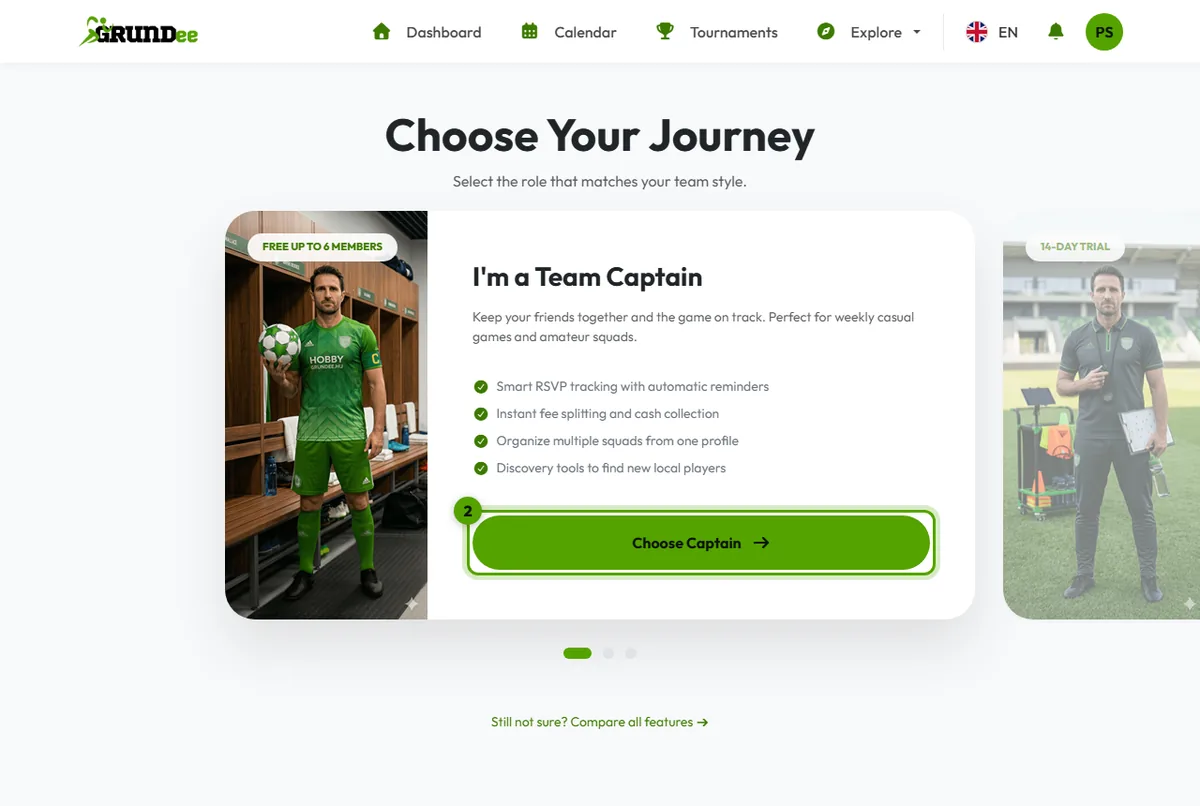
Choose your journey
Pick Choose Captain if you play in the team and organize the weekly game, or Choose Coach if you run classes or trainings without playing.
Not sure which one? Captain, coach or club manager explains the difference.
-
Fill in the basics
A few short steps, the same for captains and coaches:
- the sport;
- the team's name, its city and, if you like, its badge;
- where you usually play, if you like: only the city, one of your saved addresses or a new one. It is shown on the team page, so new players can see whether you are near them; the places of your events are added there by themselves, the most used first;
- the membership model: free, a recurring fee or a price per event;
- the ground rules: whether players answer or attend by default, whether new players find your team in Explore, and, each behind a switch, age limits and the maximum number of players;
- as a captain, your player profile: you'll be the team's captain and first player.
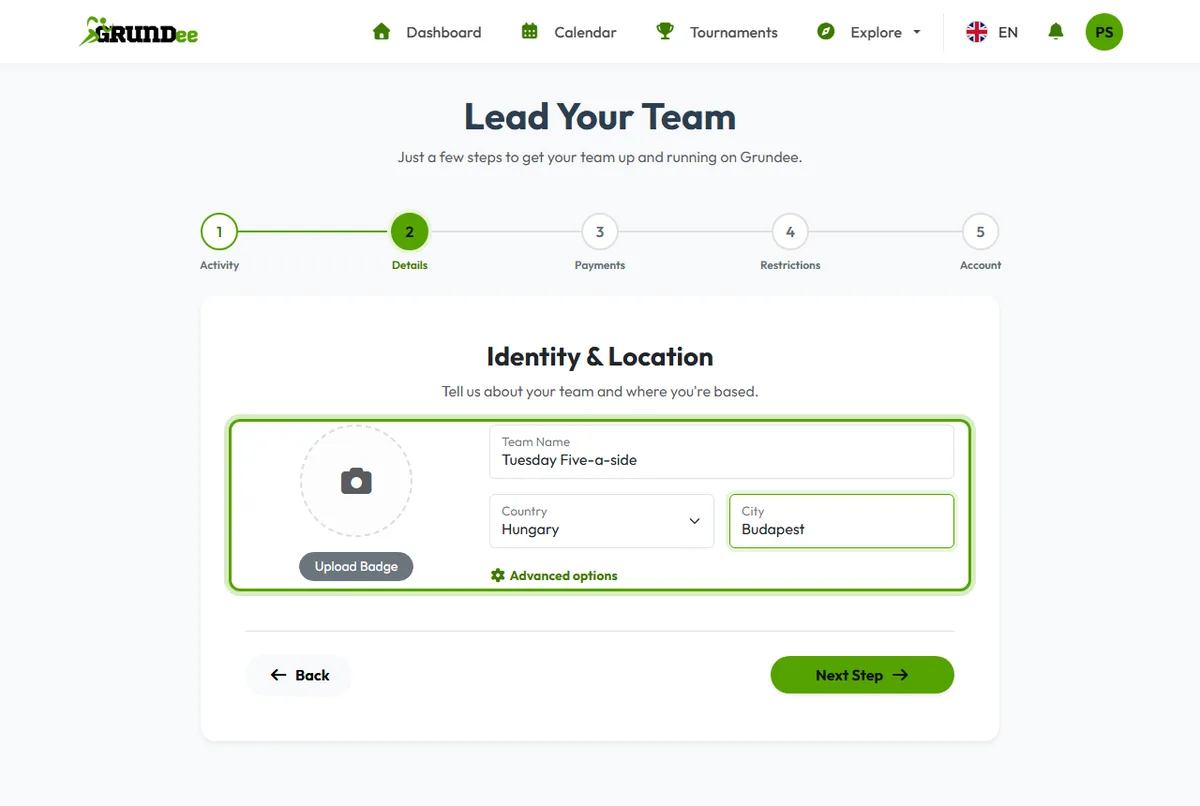
Coming from the welcome step or a tournament, the sport and the city are filled in already.
-
Launch and invite
Click Launch Team. You land on a page with your team's invite link: paste it into your group chat and your players can join right away.